How I use MyPyStub and WorkingCopy together
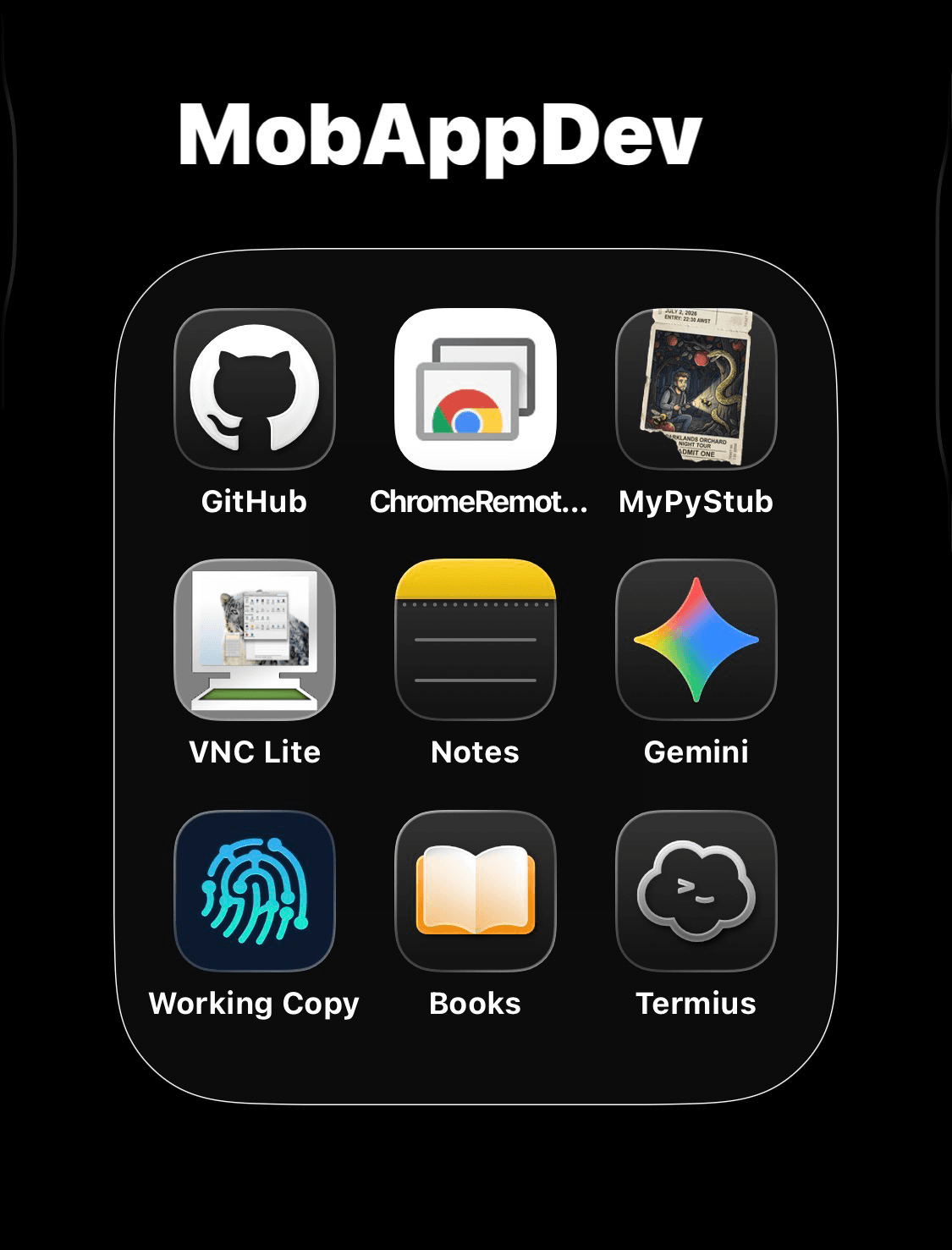
So if you are following along I have gotten myself into a rhythm now.
**MyPyStub **is the name that I *uncreatively *gave my launcher of Python code on my iPhone and iPad. (I have an open issue on GitHub for testing it cross-platforms still, but my daily driver remains my iPhone.)
**Working Copy **is an excellent power user’s app for version control and code editing.
I strongly advocate for version control in any development including hobbyist and throwaway things so I built for this from the start.
I also believe in doing one thing well. While I have made Python scripts that interact with Git before, i.e. via dulwich or similar, I have limited time.
So **Working Copy **is my editor and my version controller.
My private in-development repositories are in AWS CodeCommit and my public ones are on GitHub.
Working Copy works on both repositories (GitHub is best though).
MyPyStub allows you to access all of your Python code in the Files app under On My iPhone.
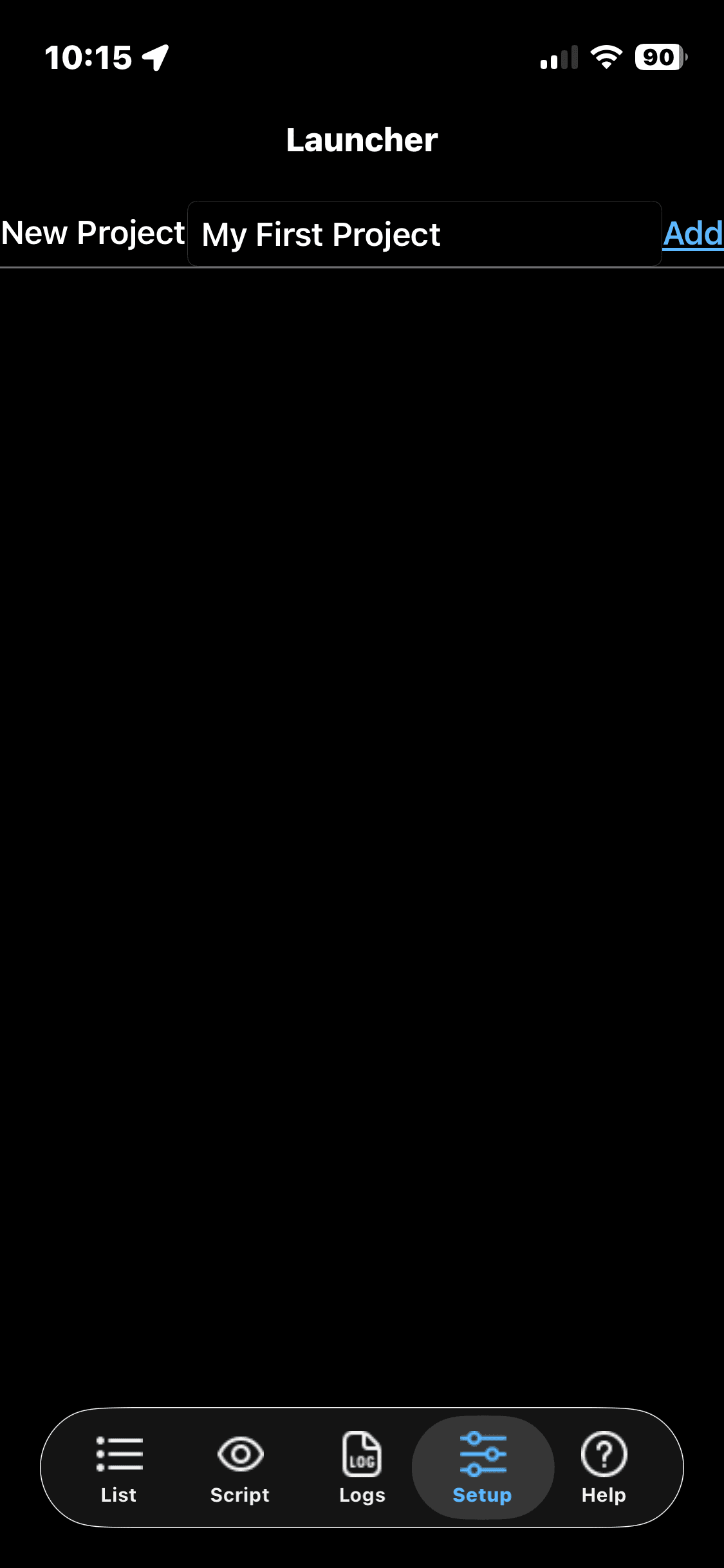
MyPyStub works best with modules written from its own template. So the first step is to go into the Settings tab, and enter a name next to New Project and then tap Add. This creates a folder of code in Files.
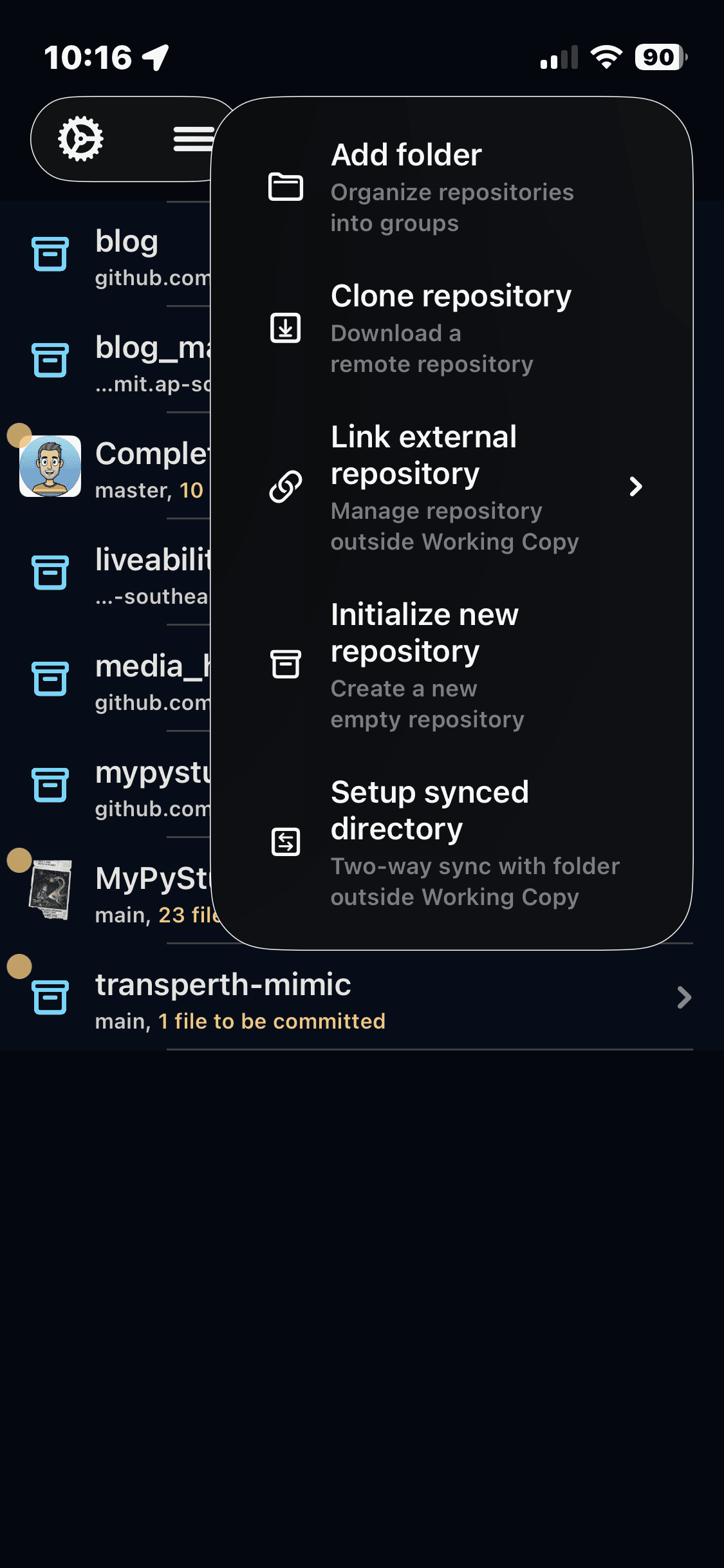
Now you want to turn this into a version controlled repository! In Working Copy this works via the “Setup synced directory” option. This copies (and keeps copying) the code between MyPyStub and Working Copy. It also creates a Git repository on the iPhone. You can then backup the repository by adding a Remote and performing Pushes.
Now you’re safe to go back into MyPyStub and experiment with the module. Upon a reload (pull down) on the List tab, the module will appear and you can tap it to run it. It will switch to the Script tab and then take over the window - if it doesn’t, an error is displayed either in place or in the Logs tab (you will need to scroll down and tap Reload).
You can then, upon proving it works, go back to Working Copy and start editing the module (beginning in app.py).
A couple of notes and limitations apply though:
- Python aggressively compiles and retains the old versions. You must fully quit MyPyStub for changes to the scripts to take effect. This requires “swiping it away” from the applications view (pulling up from the bottom).
- If you delete and reinstall the app (or if it is, if I understand, re-signed) then even though the folder looks to have the same name the link will be broken in Working Copy. You won’t be able to recover it. You have to push everything to Git and restart the process. Note that your Git repository (.git) directory cannot exist on the MyPyStub side else Working Copy **will refuse to sync! (The **Files app doesn’t show hidden files.)
- If you carefully restrict yourself to avoiding changing the main files then you should be able to apply newer versions of the module template but only manually so far.
Notice you can actually use standalone scripts, and I discovered Python “zipapps” recently and wonder if they have a place here for easy sharing. You can just have a folder with a script and a pyproject.toml if you want. Or Working Copy also allows creation of links (symbolic links). This is excellent if you wanted to use the full-override mode of patch_app.py too.
Other apps I’m using:
- Notes has my ideas
- Gemini is currently my AI of choice (through a lack of creativity and refusal to pay)
- GitHub tracks Issues in my public projects
- Books has a local copy of the Python documentation (in ePub)
- Chrome Remote Desktop, Mocha VNC Lite, Termius and Files allow me to use my Mac Mini when required (sigh) to re-load the app (I never did automate that with Shortcuts, hmm…).
Remember - I don’t really expect this to be able to reach the App Store - it’s too dynamic (then again Pyto, etc are in there).
🧠