Android Development on Chromebook
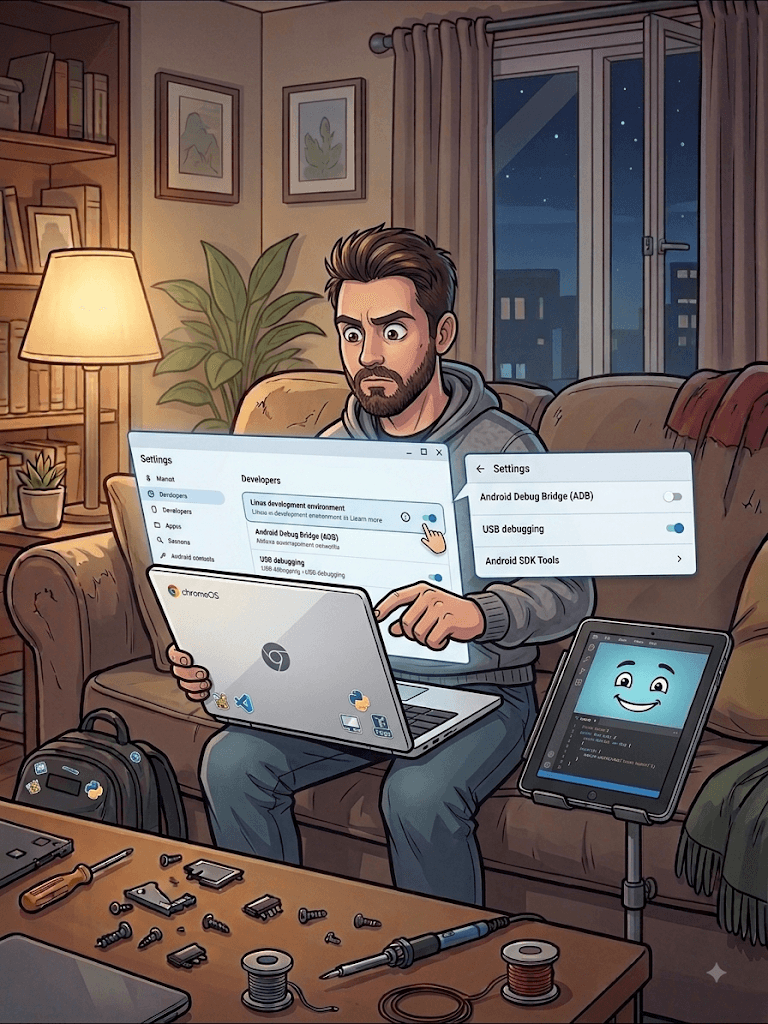
Just a tip because *Gemini (c’mon Google train your intern better!) *led me down some blind alleys yesterday.
You **can **develop and test a Python Android app on a Chromebook. Just be careful about the method you choose!
Remember that to start with you will be using the Linux development environment built into most Chromebooks (aka Crostini).
Red Flags
Tip: NOT ChromeOS Developer Mode
This is not what you’re after. Yes this will allow you to sideload the app, but it forces a full reset and unlock of the Chromebook.
NOT Firebase or other third parties
Despite the suggestion otherwise even though Firebase is Google Cloud, it isn’t Google Play so it too is just another Unknown Source so no dice on a Chromebook!
Otherwise Firebase looks very nice and the setup is very straightforward but initially superfluous for a cross-platform app. I saw this as a comparable option to Apple’s TestFlight which it is, but its app doesn’t gain any special privileges.
Buried in the Settings
The option is actually there, but it has been a long time (I use it for many other things) since I went into the Developer Settings of the Chromebook (again, Not Developer mode).
In the same place where you turn on the Linux environment is a switch to enable Android app debugging from Linux and this is where the trap door opens up to sideloading.
You reboot and you are forever-more watermarked on the lock screen (sigh) about reduced security but then with a couple of Linux package installs you can briefcase run android - no Android Studio or anything require (BeeWare took care of that).
Thus the point of this long-winded exercise is don’t despair - you can test your apps for free as you might expect from a (somewhat) more open platform.
My next expectation was to escalate to the (I’ve paid years ago) $25USD toll to enter Google Play, but thankfully, not yet! One mega-corporate bill a week please!